Food Inventory Template Excel
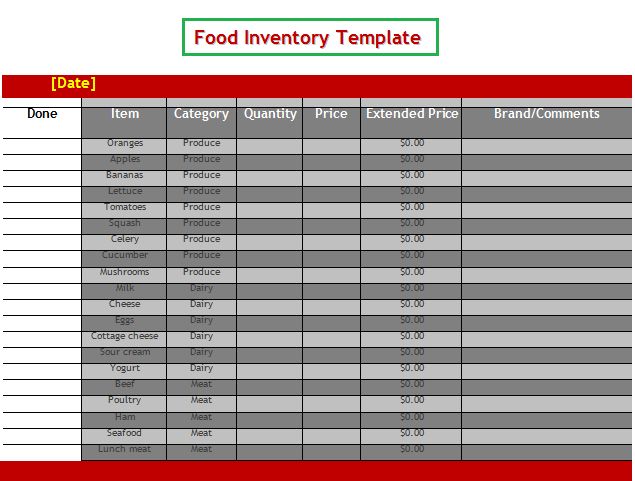
Keeping track of food inventory can be a daunting task, especially for growing businesses. This is where a well-structured food inventory template Excel comes into play, streamlining inventory management, reducing human error, and ensuring your business runs smoothly.
An efficient food inventory template should provide a real-time snapshot of your stock levels, enabling you to make informed decisions and improve your operational productivity. Let's delve into the key elements and benefits of using a food inventory template Excel, along with a step-by-step guide on how to create one.
Essential Elements of a Food Inventory Template Excel
A comprehensive food inventory template should capture key details about your food stock, helping you maintain accurate records and minimize waste. Here are fundamental elements to include:


1. **Item Name/Description**: This column should include a detailed description of each food item, making it easier to identify and manage your inventory.
Columns to Track Quantities
2. **Unit of Measure (UOM)**: This column is crucial for accurate inventory tracking. It includes the unit in which you purchase and store your stock, such as kilograms, pounds, cases, etc.


3. **Quantity on Hand**: This column records the current stock level of each item.
4. **Reorder Level**: Here, you set the threshold level at which you need to order more stock to avoid shortages.
5. **Quantity Needed**: When the quantity on hand falls below the reorder level, calculate the amount needed to replenish your stock in this column.


Columns to Track Pricing and Costs
6. **Unit Price**: This records the cost of a single unit of a particular item.
7. **Total Value on Hand**: This column calculates the total value of your current stock by multiplying the quantity on hand by the unit price.
8. **Last Purchase Date**: This helps monitor freshness and expiration dates, ensuring you rotate stock efficiently.




Benefits of Using a Food Inventory Template Excel
A well-designed food inventory template Excel offers multiple benefits, including:
1. **Improved Stock Management**: With real-time data, you can effectively monitor and control your stock levels, reducing overstocking and waste.
2. **Accessibility and Portability**: Excel templates are easily accessible and can be shared across platforms and devices, allowing your team to stay updated and synchronized.
3. **Effortless Customization**: Excel allows you to tailor your inventory template to your specific needs, making it easier to track and analyze data.
Creating Your Custom Food Inventory Template
Follow these steps to create your personalized food inventory template:
1. **Open a new workbook** and create a new sheet.
2. **Add essential columns** as detailed above, and ensure they're clearly labeled and arranged.
3. **Populate the template** with your current inventory details, entering values like item names, quantity on hand, unit price, etc.
4. **Apply formatting** for better data visualization, such as adding colors to highlight low stock levels or using bold text to emphasize important information.
5. **Set up automatic calculations** to ensure accurate and up-to-date figures. For instance, use the SUM function to display the total value of all items in your inventory.
Remember, creating a food inventory template Excel is an ongoing process. Regularly review and update your template to ensure its accuracy and relevance in managing your stock effectively.
Embracing a food inventory template Excel is the first step towards efficient inventory management. By keeping your inventory records organized and up-to-date, you'll gain valuable insights into your business, ultimately making informed decisions that drive your growth.
So, why wait? Start creating your custom food inventory template today and revolutionize your inventory management process!
Related Articles

Restaurant Inventory Template Excel: Streamline Your Food Stock Management
Mastering restaurant inventory management is a critical aspect of ensuring profitability and efficiency in your culinary establishment. One powerful tool to...
Food Inventory Sheet Template: FREE Excel Example
Welcome to our comprehensive guide on food inventory sheets. Maintaining an accurate food inventory is a critical component of running a successful restaurant...
Excel Food Inventory List Template: Quantify, Organize, & Track Now
When it comes to managing a food business, maintaining a well-organized and accurate food inventory is crucial. This task is indispensable in ensuring smooth...

Organize Your Kitchen: Free Excel Inventory List Template
Keeping track of your kitchen inventory is a crucial aspect of streamlining your cooking and mealtime preparation. While pen and paper lists can be useful...
Restaurant Inventory List Template Excel
Streamlining your restaurant operations with an efficient inventory management system is crucial for maintaining profitability and consistency in your culinary...

Kitchen Inventory List Excel Template
Streamlining your kitchen's pantry and appliances is a breeze with the help of a well-organized kitchen inventory list . This comprehensive guide will walk you...