Effortless Food Inventory Tracking: Sample Spreadsheet
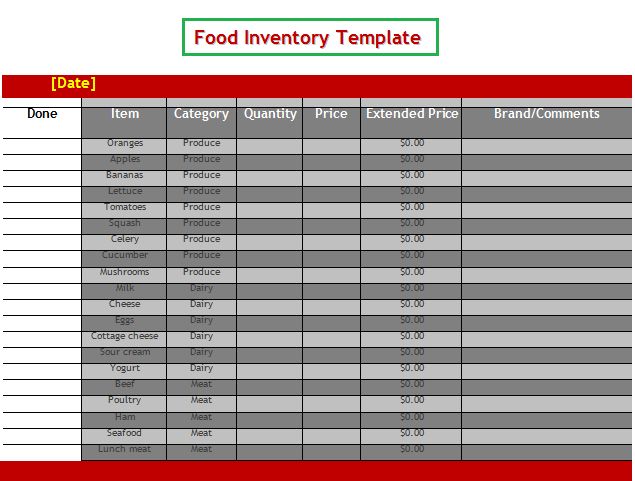
Tracking the inventory of a bustling restaurant or cafeteria can be an uphill task, especially when done manually. This is where a sample food inventory spreadsheet comes into play, streamlining the process and ensuring you never run out of essential ingredients or face spoilage. Let's delve into the intricacies of creating and optimizing one for your establishment.
Before diving into the specifics, it's crucial to understand the benefits of digital inventory management. Not only does it reduce human error and save time, but it also provides real-time updates, usage analytics, and helps in predicting future stock needs. Moreover, it supports sustainability efforts by minimizing waste due to expired or poor-quality ingredients.
Setting Up Your Food Inventory Spreadsheet
Every effective food inventory spreadsheet shares a common structure. Let's explore the key components and how to set them up.


1. **Headers**: Start with clear and descriptive headers. These could include the food item's name, unit of measurement (e.g., kg, dozen, each), the current stock, reorder point, and vendors.
Units of Measurement
Standardizing units of measurement is crucial for accurate record-keeping. For instance, use 'kg' for flour instead of 'bags' to account for varying weights per bag.


Example: Flour - kg, Eggs - dozen, Tomatoes - each
Reorder Points
Reorder points indicate when to replenish stock to avoid stockouts. They're typically calculated as 'Current Stock + Average Daily Usage - Lead Time'.
Example: Reorder point for tomatoes = (Current stock - 2) + (Average daily usage * 3 days) - (Lead time * 0.2kg)


Categorizing Food Items
Categorizing food items makes tracking inventory simpler and more efficient. Here's how you can do it.
1. **Create Tabs**: Divide your spreadsheet into tabs for different categories, like 'Produce', 'Dairy', 'Meat', 'Pantry', etc.
2. **Sort Within Tabs**: Within each tab, sort items by type (e.g., sort 'Produce' by fruits, vegetables, herbs, etc.)




Using Filters and Search Functions
Implementing filters and search functions enhances navigation. This allows you to quickly locate specific items or view only relevant categories.
Example: Using the 'Filter' function in Google Sheets to view only 'High Priority' items based on reorder points
Updating Stock Levels
Regularly update inventory based on usage, receipts, and deliveries. Automating this process using add-ons or plugins can save considerable time and effort.
Ultimately, a well-designed food inventory spreadsheet is your secret weapon for efficient, sustainable, and profitable food management. So start creating or optimizing your inventory tool today, and watch your business run smoother than ever!
Related Articles

Food Inventory Turnover Formula: Boost Profits with Effective Tracking
Effectively managing your restaurant's inventory is a crucial aspect of successful business operations. One key metric that helps gauge the efficiency of this...

"Sample Food Inventory List"
A comprehensive food inventory list is indispensable for any commercial kitchen, restaurant, or catering service. It ensures consistency in meal preparation...
Kitchen Food Inventory: Manage With Ease
Keeping track of food items in your kitchen can be a daunting task, especially in a busy household. A Kitchen Food Inventory Spreadsheet can make this process...

Effortless Kitchen Inventory: Excel Spreadsheet Template
Streamlining your kitchen workflow means having everything you need at your fingertips. A kitchen inventory spreadsheet on Excel can do just that, ensuring you...
Food Pantry Inventory Spreadsheet
The efficient management of a food pantry relies heavily on precise inventory tracking. This is where a food pantry inventory spreadsheet becomes an...

Food Inventory Excel Spreadsheet
Efficiently managing your restaurant or café's food inventory is pivotal for maintaining fresh products, reducing waste, and ensuring your kitchen is always...